
A tracking pixel is a small tag from an ad or analytics service. Add it once in LinkEase, attach it to links, and the service sees who clicked, without you touching the destination site.
What you need
- Plan: Pro (5 pixels) or Team (25 pixels)
- Time: 5 minutes
- The pixel ID from your ad or analytics account.
Open Tracking Pixels
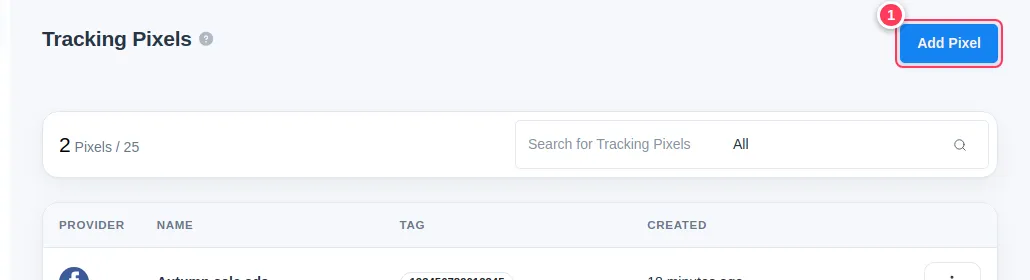
Open Tracking Pixels in the menu. The counter shows how many pixels you use of your limit. Press Add Pixel (1).
Fill the form
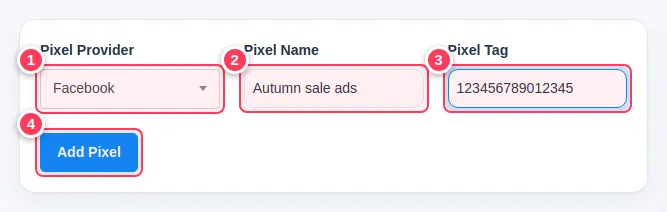
Choose the Pixel Provider (1), give it a Pixel Name you will recognise (2), paste the Pixel Tag (3), then press Add Pixel (4).
Check the list
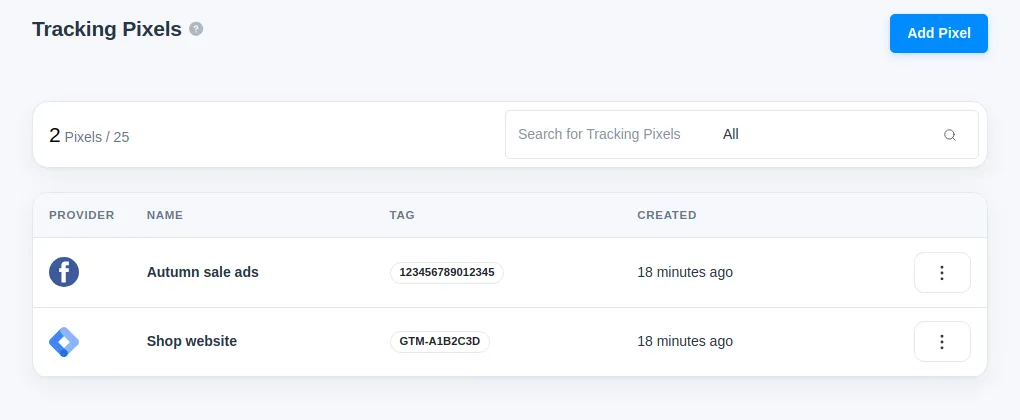
The new pixel appears with its provider icon and tag. Now attach it to a link.
Supported providers
Google Tag Manager, Google Analytics, Facebook, Google Ads, LinkedIn, Twitter, AdRoll, Quora, Pinterest, Bing, Snapchat, Reddit and TikTok.
What the tag must look like
- Facebook: numbers only, up to 20 digits.
- Google Tag Manager: contains "GTM", for example GTM-A1B2C3D.
- LinkedIn: up to 10 characters. Twitter: up to 15. Google Ads: up to 40. AdRoll: up to 50. Quora: at least 30.
- Google Analytics, Snapchat, Pinterest, Reddit, Bing, TikTok: at least 5 characters.
Common problems
The form says the tag is not valid.
Copy only the ID, not the whole script, and compare it with the rules above.
I cannot add more pixels.
Pro includes 5 pixels and Team 25. Delete one you do not use, or upgrade.