
A pixel only works on the links you attach it to. Here is how to attach one or more pixels to a link.
What you need
- Plan: Pro or Team, with at least one pixel
- Time: 2 minutes
- A pixel already added. See Add a tracking pixel.
Open the link for editing
In Links choose the link, then open Edit.
Choose the pixels
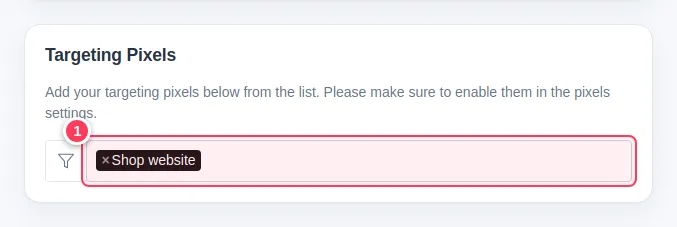
Find the Targeting Pixels card and click inside the list (1). Pick one or more pixels; each shows as a tag. The card reminds you to enable the pixels in the pixel settings.
Save
Press Update Link (2) at the top of the page.

Tip. You can also choose the pixels when you create the link, in the advanced options.
Common problems
The list is empty.
Add a pixel first. See Add a tracking pixel.
Does the pixel work on old clicks?
No. It works on clicks after you save.