
Add your Twitter (X) pixel to LinkEase in a minute and attach it to your links.
What you need
- Plan: Pro or Team
- Time: 2 minutes
- What to copy: Your Twitter pixel ID (up to 15 characters).
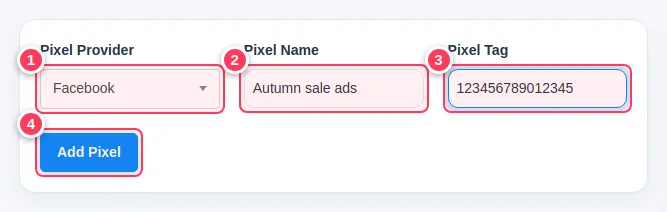
- Open Tracking Pixels and press Add Pixel.
- Choose Twitter (X) pixel as the provider, type a name, and paste the ID.
- Press Add Pixel.
- Edit a link, choose the pixel in Targeting Pixels and press Update Link.
Full pictures and the rules for every provider are in Add a tracking pixel and Attach a pixel to a link.