
Pick a ready theme in one click, then adjust colours, button style and background so the page matches your brand.
What you need
- Plan: Free plan
- Time: 4 min
Step by step
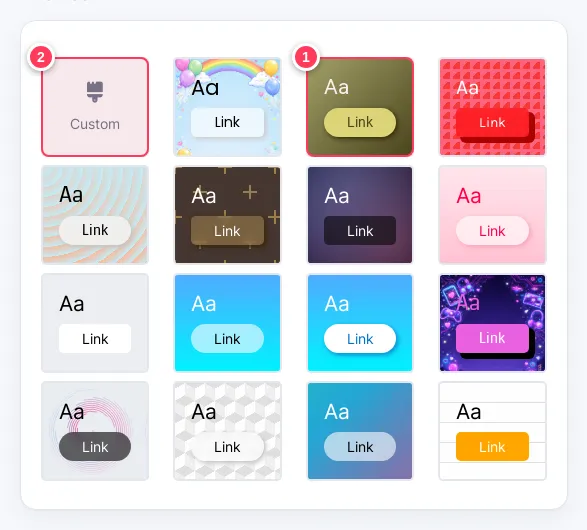
Open the Design tab and pick a theme
- 1Press a theme to apply it. The preview shows the result at once.
- 2Custom lets you build your own look.
Tune the buttons
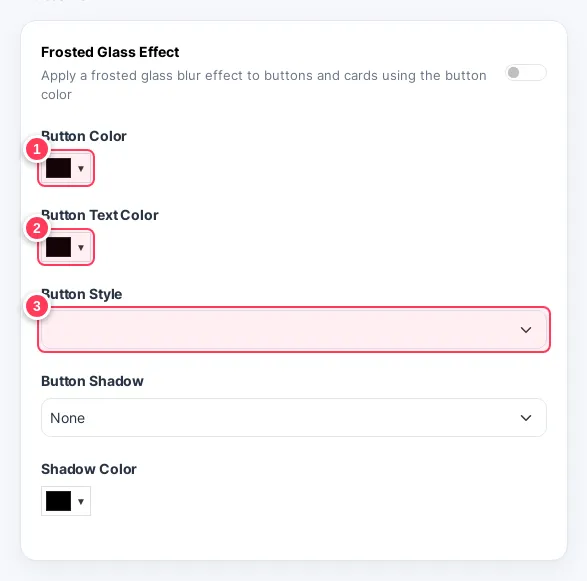
- 1Button Color.
- 2Button Text Color.
- 3Button Style: different shapes.
You will also find shadow and frosted glass options.
Set the background
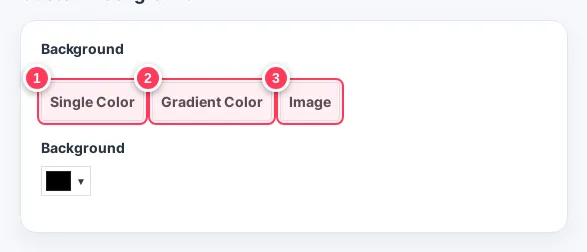
- 1Single Color.
- 2Gradient Color.
- 3Image: upload your own picture.
Tip: Keep enough contrast between the text and the background so phones in sunlight can read it.
Tip: Custom CSS for full control is a Pro feature.
Common problems
My changes do not show.
The Design tab saves by itself. Refresh the public page of your bio.
Can I use my logo?
Yes. Upload the profile picture from the Content tab, next to the page name.