
A bio page is built from blocks: a tagline, buttons that open links, a WhatsApp button, social icons. Add them in the order you want visitors to see them.
What you need
- Plan: Free plan
- Time: 5 min
Step by step
Open the Content tab
In the editor, open Content.
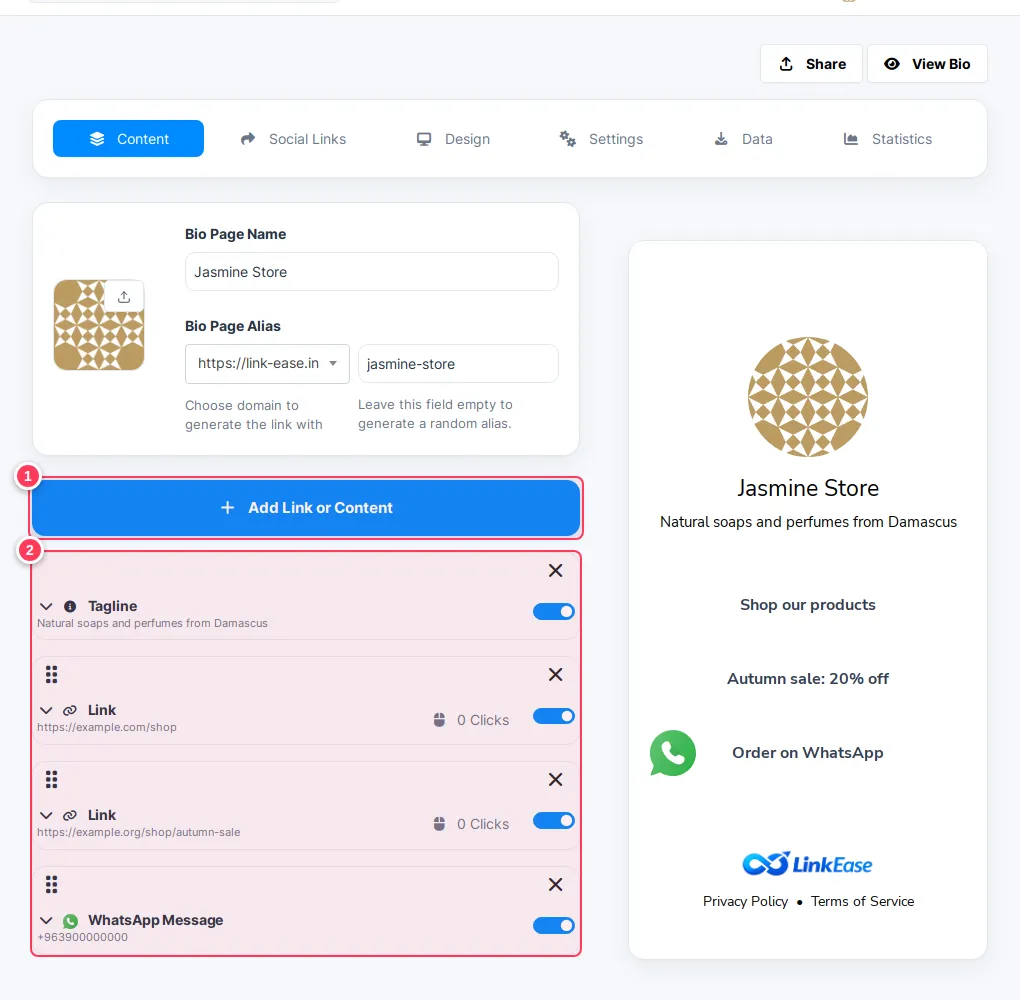
- 1Add Link or Content opens the list of blocks.
- 2Your blocks appear here, in order. Drag the dots to reorder, use the switch to hide a block and the X to remove it. The preview on the left shows the page live.
Choose a block
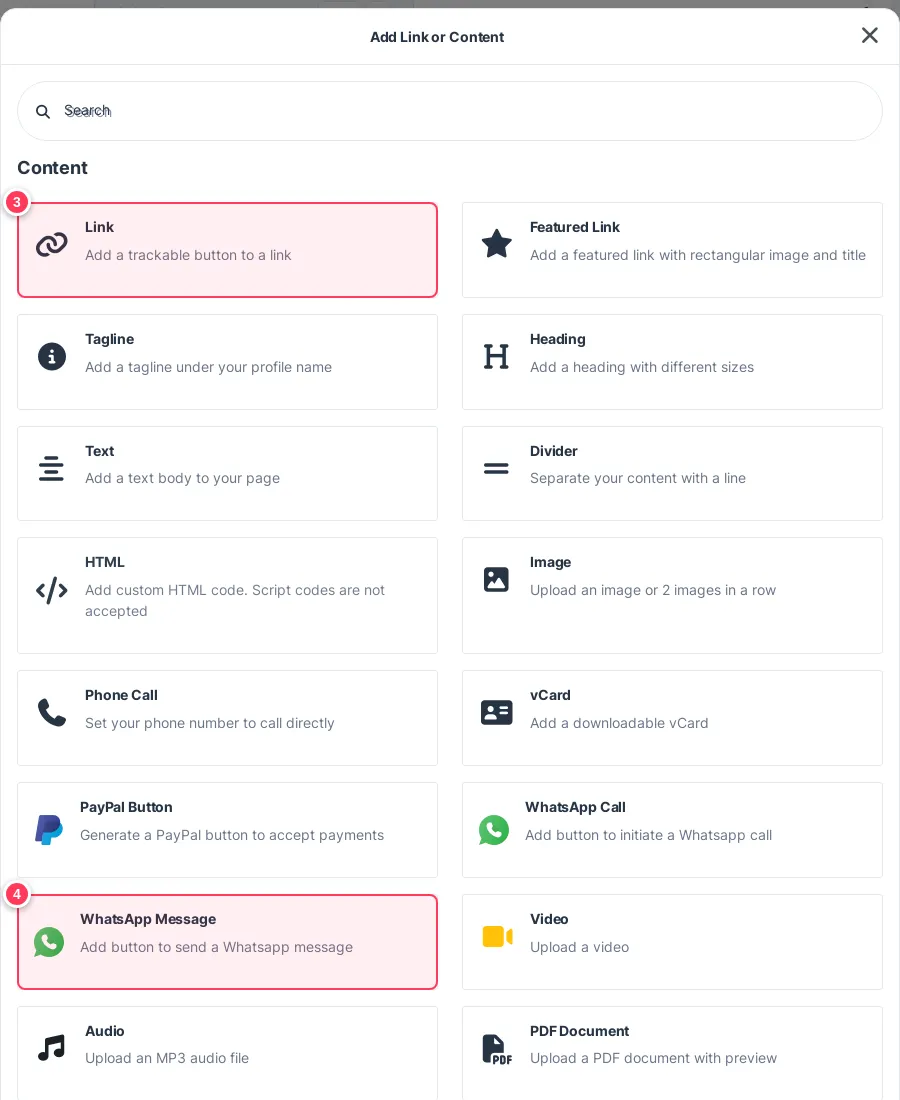
- 3Link: a trackable button that opens an address.
- 4WhatsApp Message: a button that opens a WhatsApp chat with a ready message.
Other blocks include Tagline, Heading, Text, Divider, Image, Video, Audio, Phone Call, vCard, PDF Document and PayPal Button.
Fill the block and save
For a Link block:
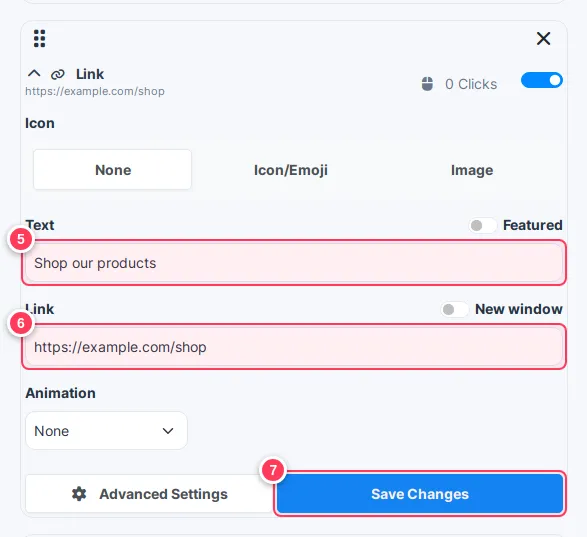
- 5Text: the words on the button.
- 6Link: where it goes.
- 7Press Save Changes on the block.
Add social icons
Open the Social Links tab.
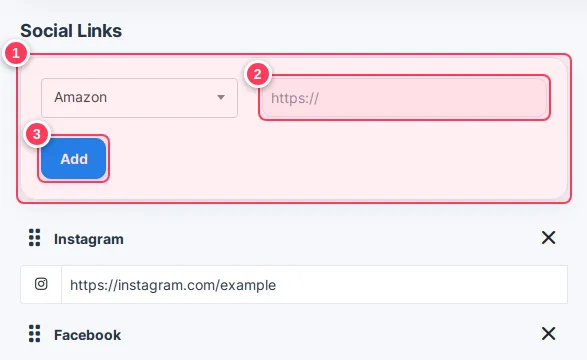
- 1Choose the network.
- 2Paste your profile address.
- 3Press Add.
Important: Press Save Changes on each block, or your edit is not kept.
Tip: Put the button you want clicked most at the top. A short tagline under the name tells new visitors who you are.
Common problems
My block does not show on the page.
Check its switch is on and that you saved it. Then refresh the page.
Can I see clicks on each button?
Yes. Open the Statistics tab of the bio page.