
The dashboard is the first page you see after signing in. It shows how your links are doing and lets you shorten a link right away.
What you need
- Plan: Free plan
- Time: 3 min
Step by step
Find your way around
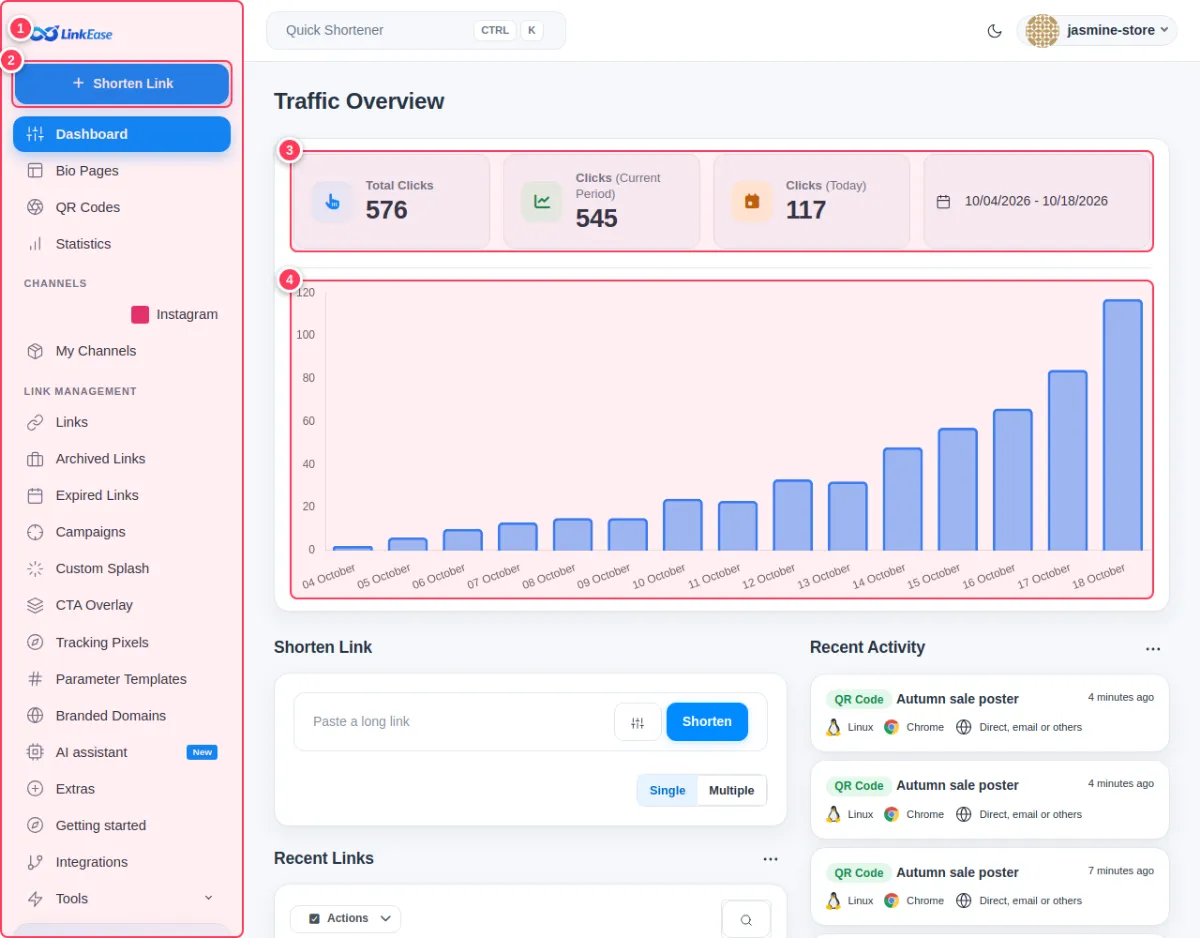
On a computer the menu is on the side (on the right in Arabic).
- 1The side menu: Dashboard, Bio Pages, QR Codes, Statistics, Links, Campaigns, tracking tools, Extras and more.
- 2Shorten Link opens the quick shortener from any page.
- 3Your totals: all clicks, clicks in the chosen period, and clicks today. Change the period with the date box.
- 4The chart shows clicks per day for that period.
Shorten and review from the same page
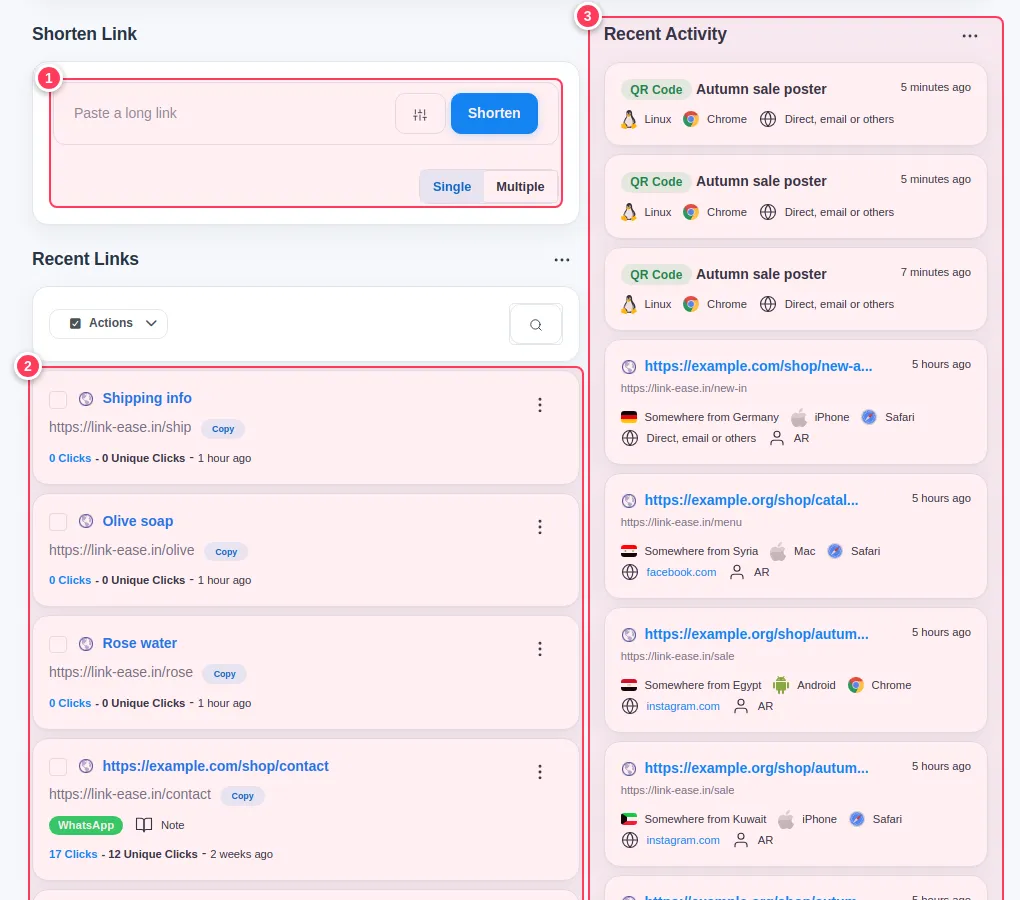
Under the chart you will find three boxes.
- 1Shorten Link: paste a long address and press the button.
- 2Recent Links: your newest links with their clicks. The three dots open the menu (share, statistics, edit, archive, delete).
- 3Recent Activity: the latest visits, with country, device, browser and where the visitor came from.
On a phone
The same information is stacked in one column. Open the menu with the three-lines button at the top.
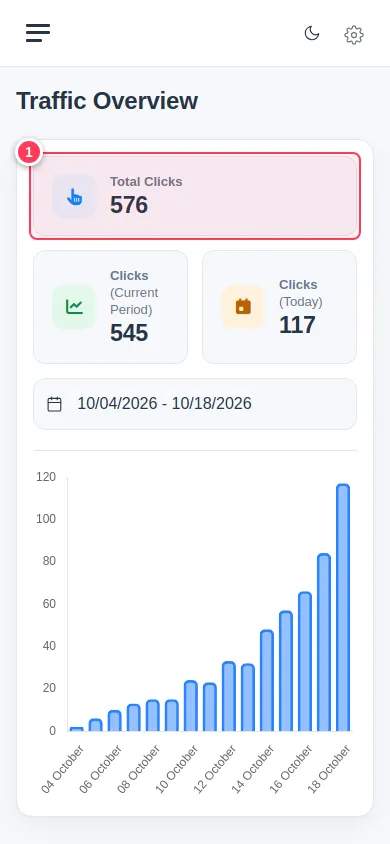
Tip: Counters on the dashboard follow the date range. If you see zero, widen the period.
Common problems
The chart is empty.
It fills in a few seconds after the page opens. If it stays empty, no one has clicked your links in the chosen period yet.
What is the difference between Total Clicks and Unique Clicks?
Total counts every visit. Unique counts each visitor once.