
Download your code in the format that fits where it will be used. If you are not sure: PNG for screens, SVG for print.
What you need
- Plan: Free plan
- Time: 2 min
Step by step
Open your QR code
Go to QR Codes, find your code and open it for editing.
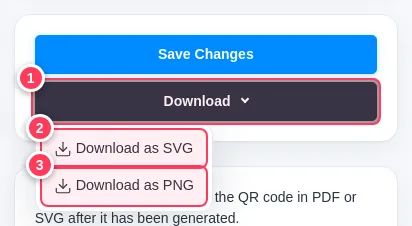
Press Download
In the box on the right:
- 1Press Download.
- 2Download as SVG for print.
- 3Download as PNG for screens.
If your account shows a Download as PDF item too, it gives a file you can send straight to a print shop.
Tip: Print a small test and scan it with two different phones before ordering a big batch. Leave a blank margin around the code and never print it smaller than about 2 cm.
Which format?
| Format | Best for |
|---|---|
| SVG | Print of any size: business cards, posters, banners. It never gets blurry. |
| PNG | WhatsApp, Instagram, websites, slides and documents. |
| Handing a ready file to a print shop (where offered). |
Common problems
The PNG looks blurry when I enlarge it.
Use SVG for anything large. PNG is sized for screens.
I changed the design but the download is the old one.
Press Save Changes first, then download.