
A styled code looks like your brand and gets scanned more. You can change colours and shapes on any plan. Adding a logo and a frame needs Pro.
What you need
- Plan: Pro plan
- Time: 5 min
Step by step
Open the design sections
Create a new QR (or edit one). Below the form you will see Templates, Colors and Design. Press a title to open it.
Choose colours
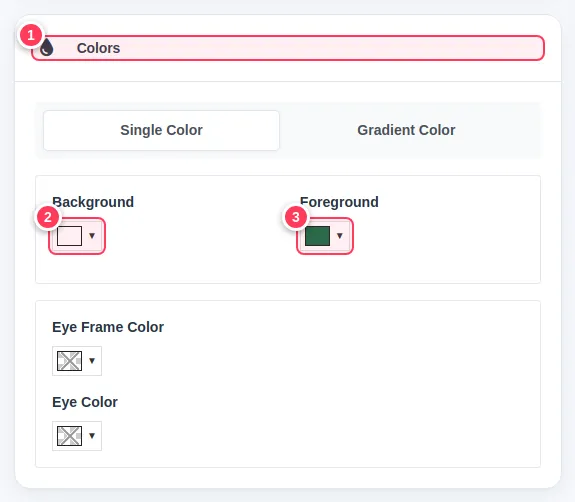
- 1Open Colors. You can use a single colour or a gradient.
- 2Background: usually light.
- 3Foreground: the dots, usually dark.
Add your logo (Pro)
In Design:
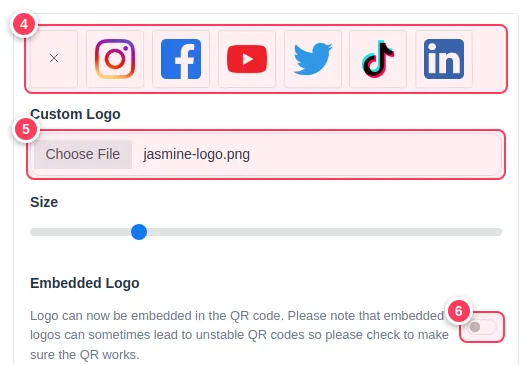
- 4Pick one of the ready logos (Instagram, Facebook, YouTube and others)...
- 5...or upload your own with Custom Logo, and set its size.
- 6The Embedded Logo switch puts the logo inside the code.
Pick the shapes
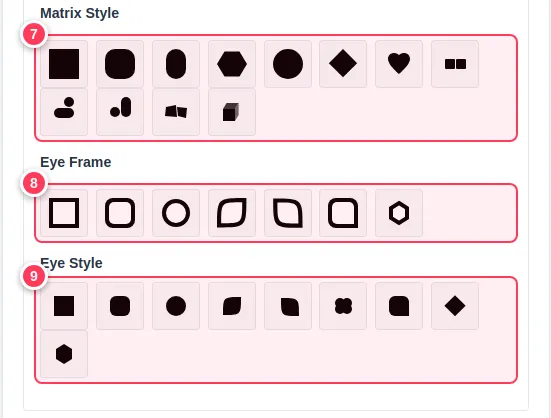
- 7Matrix Style: the shape of the dots.
- 8Eye Frame: the outer square of the three corners.
- 9Eye Style: the inner part of the corners.
Add a frame with text (Pro)
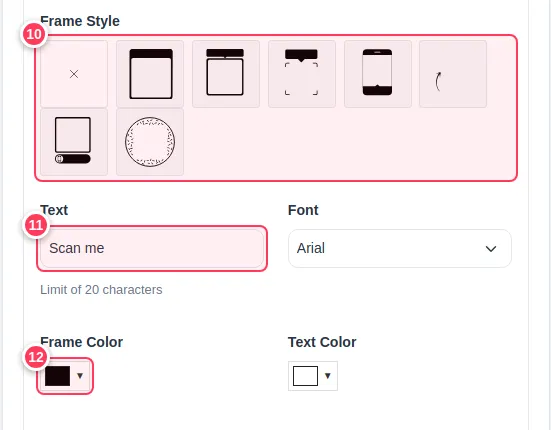
- 10Frame Style: choose a frame, for example a label below the code.
- 11Text: for example "Scan me" (up to 20 characters), and a font.
- 12Frame Color and text colour.
Check the result
The preview on the right updates as you go. When it looks right press Generate QR (or Save Changes when editing).
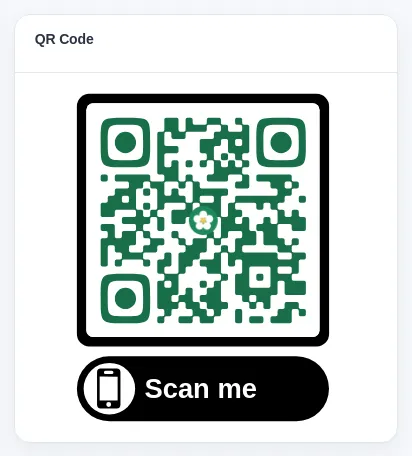
Important: Always scan the code with a phone before printing. Keep strong contrast between dots and background, and do not make the logo too large. If a fancy design does not scan, raise the Error Correction setting or simplify the design.
Tip: Avoid light dots on a dark background: many readers cannot scan them.
Common problems
My styled code will not scan.
Increase contrast, reduce the logo size, and raise Error Correction in the Design section.
The logo and frame options are locked.
They are Pro features. Colours and shapes work on the Free plan.