
On the Team plan you can invite up to 5 people and decide exactly what each one is allowed to do.
What you need
- Plan: Team (up to 5 members)
- Time: 5 minutes
- The email of the person you invite.
Open Teams and type the email
Open Teams in the menu. In Invite Members type the person's Email (1).

Choose the permissions
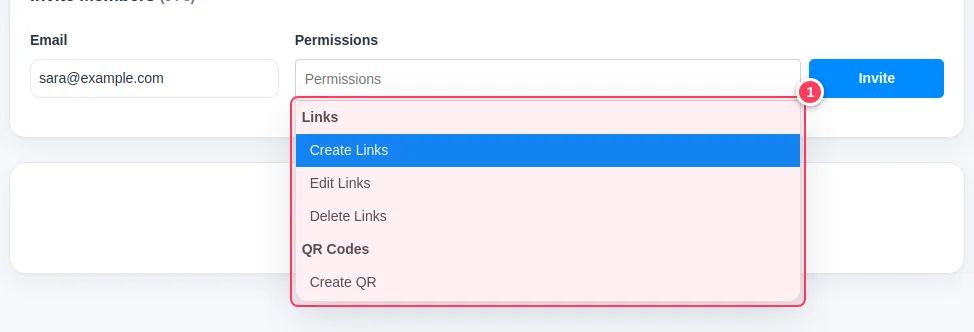
Click Permissions and tick what the person may do (1). They are grouped: Links (create, edit, delete), QR codes, Bio pages, Splash and Overlay pages, Pixels, Branded domains (add, delete), Campaigns and channels, Developer API, and Export. A permission is required.
Send the invite
Your choices show as tags (2). Press Invite (3). The person gets an email. If they have no account yet, one is prepared for them.

Manage members
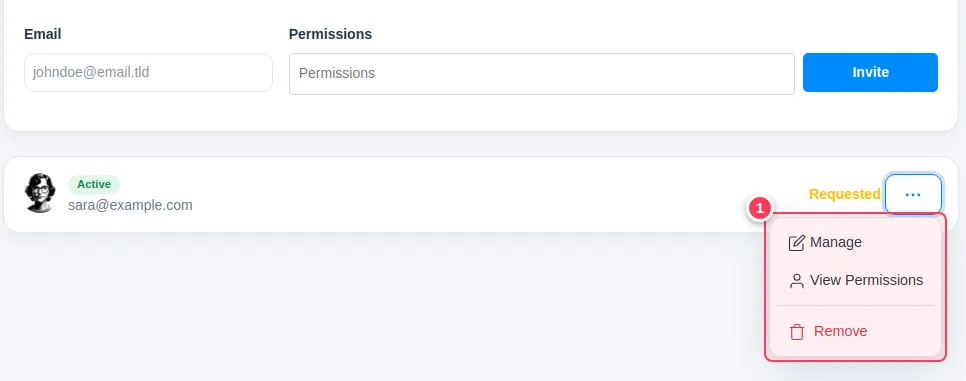
The member appears in the list. Open the ... menu (1) to Manage them, View Permissions, or Remove them. The label Requested means the invitation has not been accepted yet.
Tip. Give only what is needed. Members cannot invite others, and only you, the owner, can buy extras or change the plan.
Common problems
I do not see Teams, or I cannot invite.
Teams is part of the plan named Team, with up to 5 members. See Compare the plans.
The member cannot see a feature.
Open Manage and add that permission.