
Change your name, email, photo or password from one page.
What you need
- Plan: Any plan
- Time: 2 minutes
Open Settings
Click your name at the top of the page, then Settings.
Change your photo
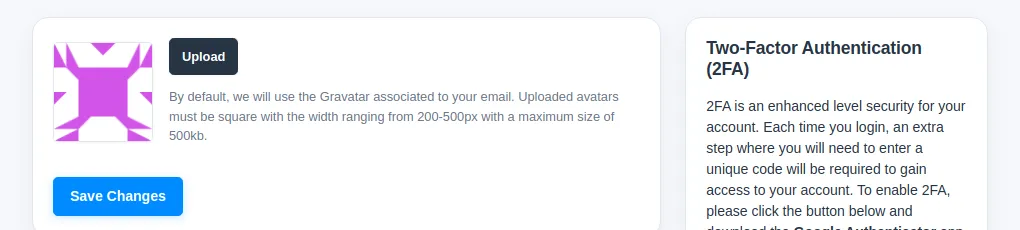
Press Upload to choose a picture. It must be square, between 200 and 500 pixels wide, and under 500 KB. If you upload nothing, the Gravatar linked to your email is used. Press Save Changes.
Change your name, email or password
Edit the Name (1). To set a new password type it in Password (2) and again in Confirm Password. Leave both blank to keep the current password. Then press Save Changes (3).
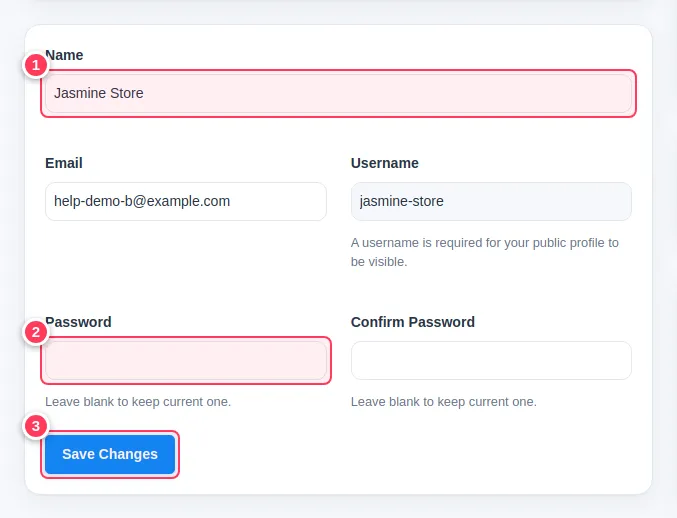
The Username is needed for your public profile to be visible.
Tip. Choose a long password you do not use anywhere else, and turn on two-factor protection: two-factor authentication.
Common problems
It says the email is taken.
Another account already uses it. Use a different email.
I forgot my password.
Use Forgot password on the sign-in page and follow the email.