
Two-factor authentication adds a second step at sign-in: a 6-digit code from an app on your phone. Even if someone learns your password, they cannot enter.
What you need
- Plan: Any plan
- Time: 5 minutes
- An authenticator app such as Google Authenticator, from the Apple Store or Play Store.
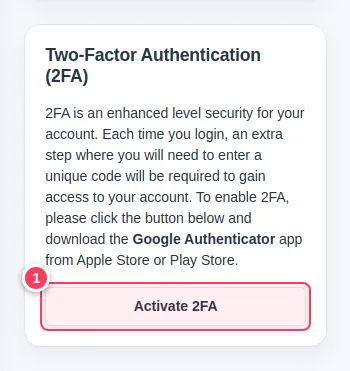
Press Activate 2FA
Open Settings. In the Two-Factor Authentication (2FA) card press Activate 2FA (1).
Scan the code and confirm
A window opens. Scan the QR code with your authenticator app (1). Save the Secret Key somewhere safe: it recovers the setup if you lose your phone. Type the 6-digit number from the app in 2FA Access Code (2) and press Activate (3).
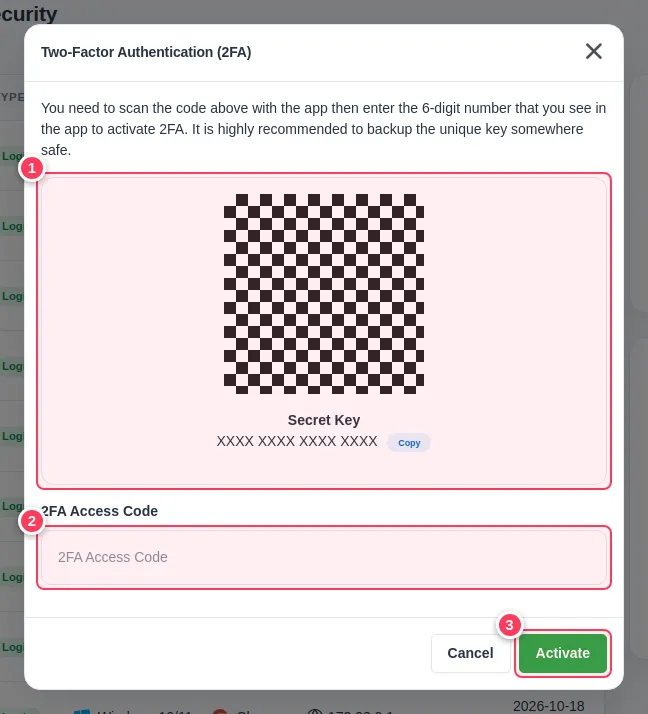
The picture uses a stand-in for the QR code and a hidden secret key: yours will show real ones.
Sign in with the code
From now on, after your password the page asks for the 6-digit code from the app.
Important. Do not share the secret key or screenshots of the QR code. Anyone who has them can produce your codes.
Turn it off
Open Settings then Security. There you also see your login history and can use Logout on all devices. A button to disable 2FA is in the same area.
Common problems
The code is always wrong.
Check the time on your phone is automatic. Codes depend on the exact time.
I lost my phone.
Use the saved secret key in a new authenticator app. If you did not save it, contact us.