
Channels are coloured labels that you stick on links, QR codes and bio pages: "Instagram", "Flyers", "WhatsApp". They keep your lists tidy and let you filter by where a link is used.
What you need
- Plan: Free plan
- Time: 3 min
Step by step
Open My Channels
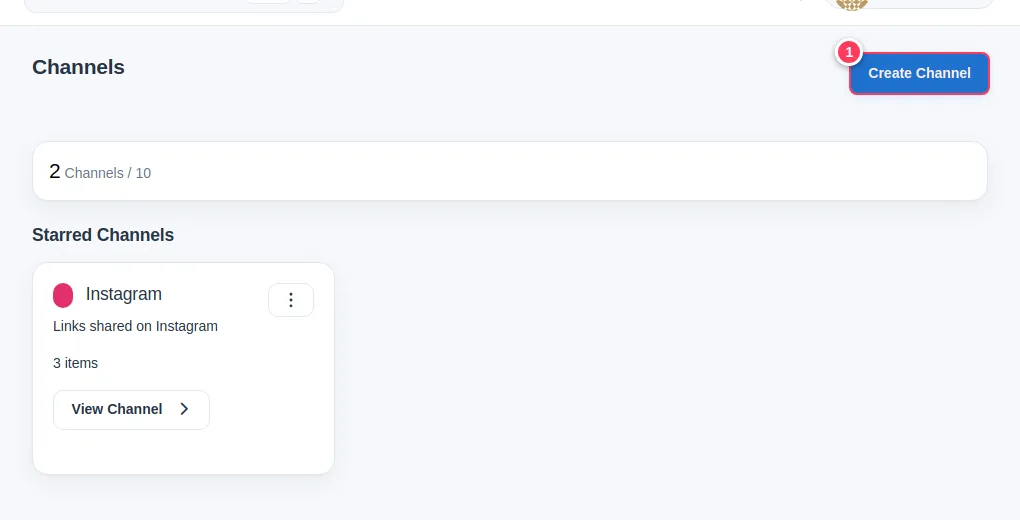
Choose My Channels in the side menu. The counter shows how many channels you have out of 10.
Create a channel
- 1Press Create Channel.
Name and colour it
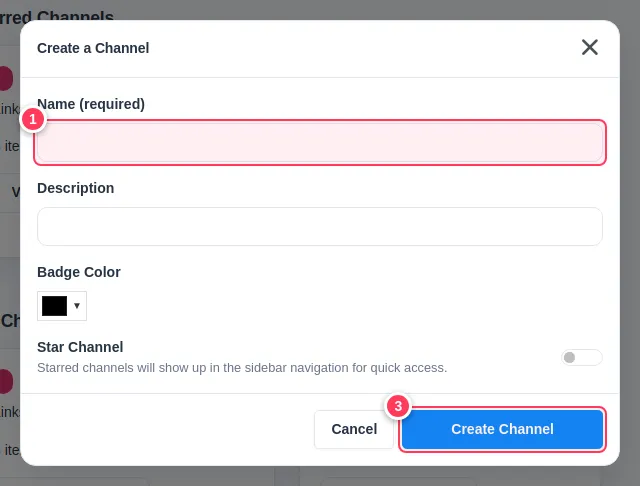
- 1Name: for example "Instagram".
- 2Badge Color: pick a colour to recognise it.
- 3Press Create Channel.
The Star Channel switch pins the channel to the side menu for quick access.
Put links in a channel
When you shorten a link, choose the channel in the options. For an existing link, choose the channel in its edit page. Then open the channel to see everything inside it.
Tip: Give each place you share a link its own channel (and its own link). Then the link statistics tell you which place works best.
Common problems
Is there a limit?
You can have up to 10 channels.
Does a channel change how a link works?
No. It is only a label for organising.