
UTM tags are small labels added to the end of your link so your analytics tool (Google Analytics, for example) knows which campaign brought each visitor. LinkEase adds them for you each time someone clicks.
What you need
- Plan: Free plan
- Time: 3 min
Step by step
Open the Parameter Builder
Open the link's edit page (three dots, then Edit) and scroll to Parameter Builder.
Add your tags
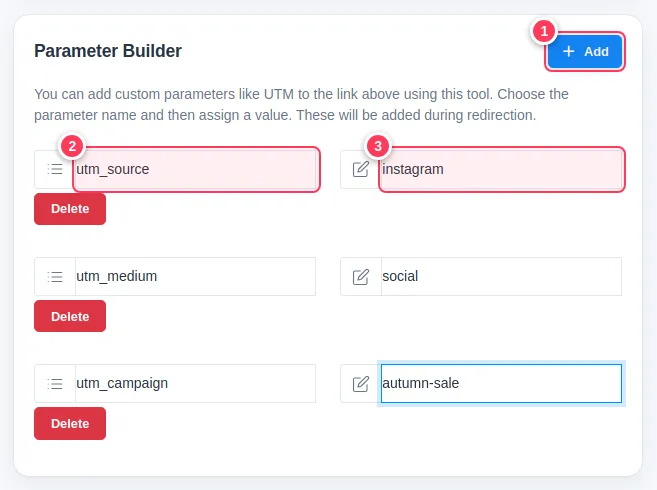
Add one row for each tag.
- 1Press Add to create a row.
- 2Type the tag name, for example
utm_source. - 3Type its value, for example
instagram.
Save and test
Press Update Link. When someone opens the short link, they land on
https://example.com/shop?utm_source=instagram&utm_medium=social&utm_campaign=autumn-sale.
Tip: The three classic tags are utm_source (where: instagram), utm_medium (type: social, email) and utm_campaign (which campaign: autumn-sale). Use lowercase and no spaces.
Tip: On Pro you can save a set of tags as a template and reuse it on other links.
Common problems
Do UTM tags change what the visitor sees?
No. The page is the same. Only the address carries the extra labels.
Where do I see the result?
In your analytics tool, not in LinkEase. LinkEase statistics show clicks, countries, devices and referrers.