
You can rename, describe and re-target a link after you created it. Changing where it goes is the plan-dependent part, so read the note below.
What you need
- Plan: Pro plan
- Time: 2 min
Step by step
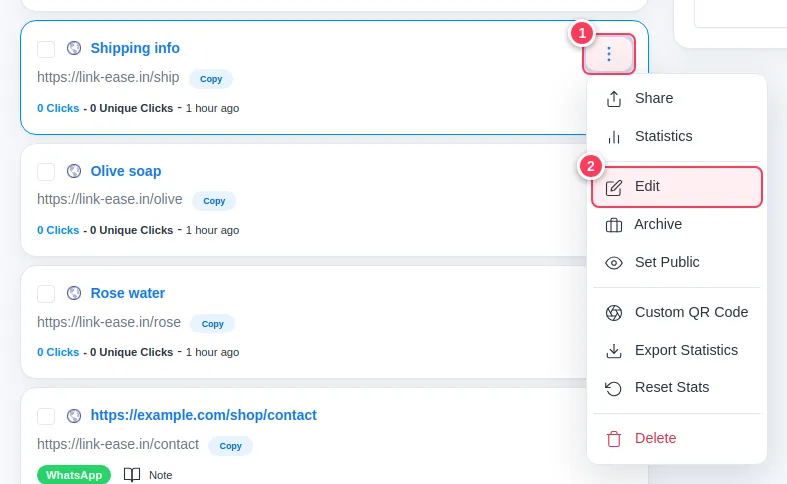
Open the link menu
Go to Links (or the dashboard list).
- 1Press the three dots on the link.
- 2Press Edit.
Change the destination
On the edit page:
- 1Change the address in the URL field. Every place that already uses the short link now goes to the new page.
- 2Press Update Link to save.
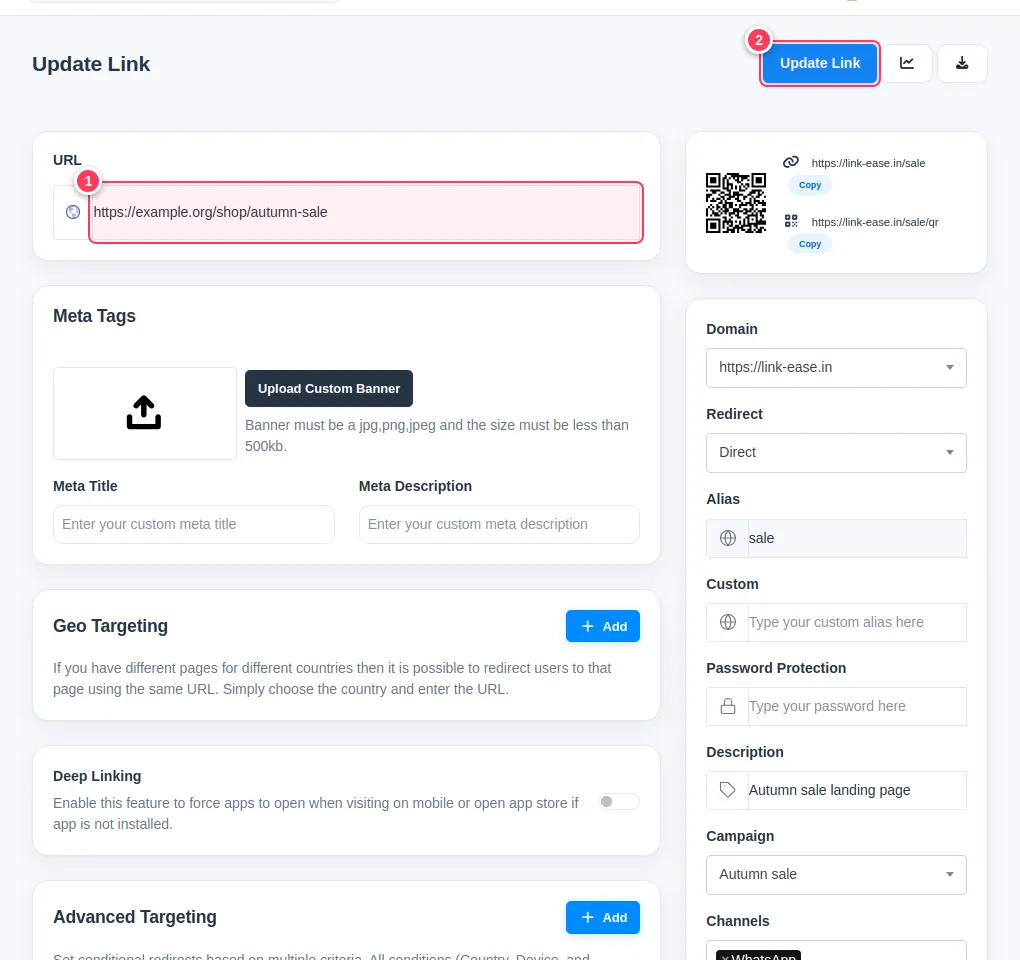
Important: On the Free plan the URL field is locked: you can edit the other details (alias, description, parameters) but not where the link goes. To change the destination, create a new link or upgrade to Pro. Pro and Team can edit the destination any time, and also choose the redirect type (Direct, Frame or Splash).
Tip: Use this when a product page moves or a campaign ends: the printed QR code or posted link keeps working.
Common problems
The URL field is grey and I cannot type.
Your account is on the Free plan. Upgrade to Pro to change destinations.
Do the statistics reset when I change the destination?
No. Past clicks stay. Use Reset Stats from the same menu only if you really want to start from zero.