
By default LinkEase gives your link a random short name. A custom alias lets you choose a readable one, such as /menu or /rose-water, so people remember it and trust it.
What you need
- Plan: Free plan
- Time: 2 min
Step by step
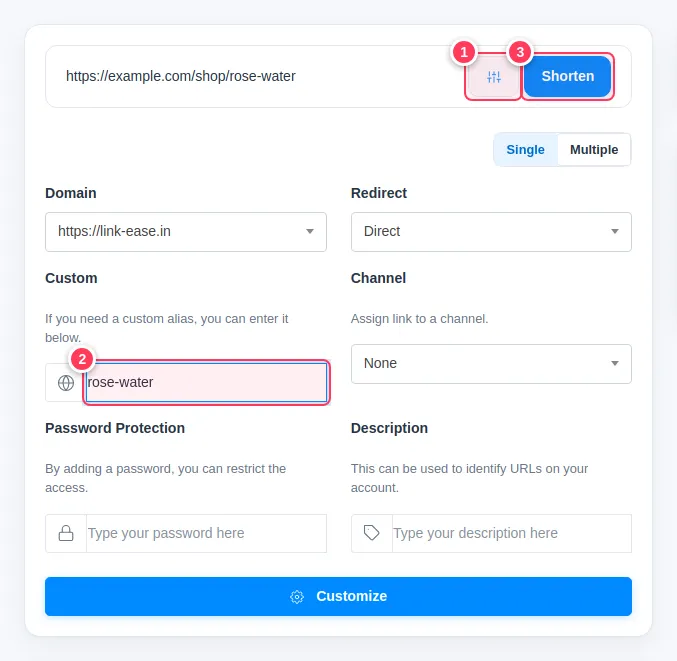
Open the options when you shorten
On your dashboard or the Links page, paste the long link first.
- 1Press the options button (the small sliders icon).
- 2Type your word in the Custom field.
- 3Press Shorten.
Or change the alias of an existing link
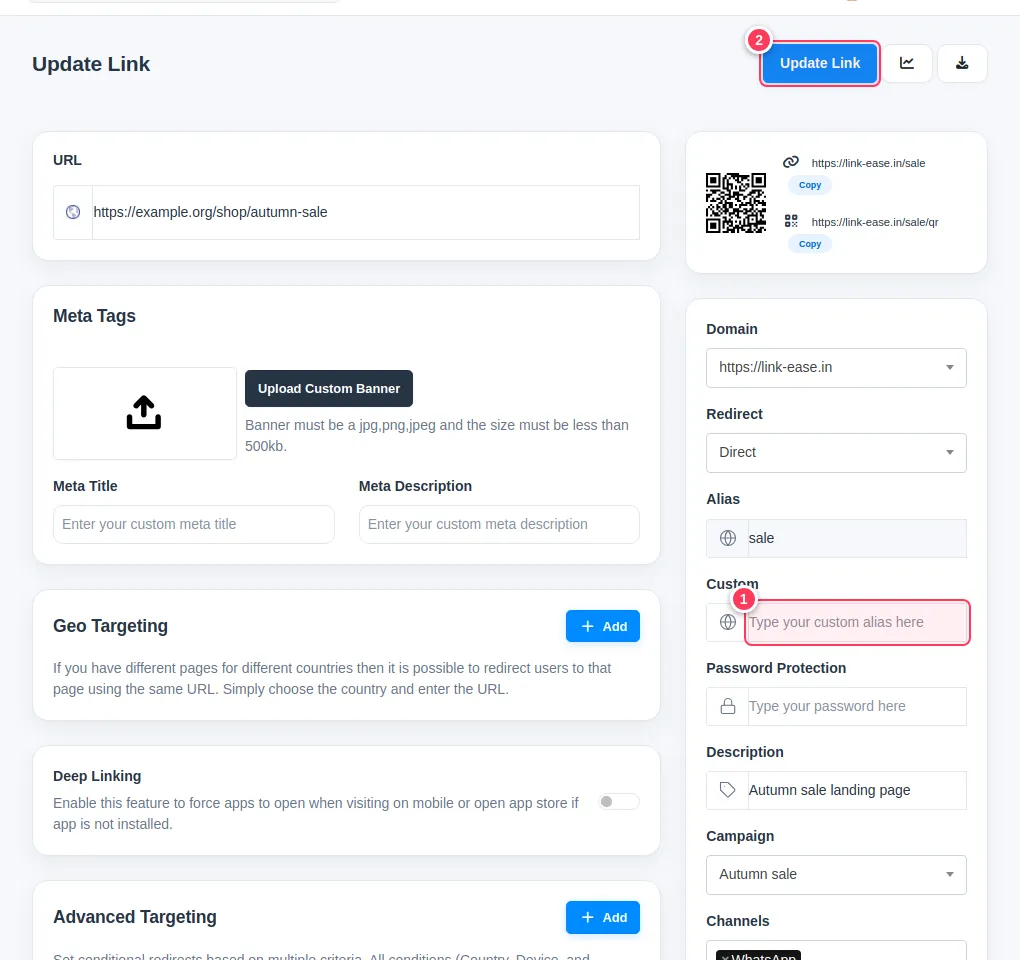
Open the link's edit page from the three-dots menu, then Edit.
- 1Type the new name in the Custom field.
- 2Press Update Link.
Share the new address
Your link now looks like
link-ease.in/rose-water. Test it in a new tab before you share it.
Tip: Use short words with letters, numbers and dashes. Avoid spaces.
Important: An alias that is already taken cannot be used. Choose carefully before you print it on anything.
Common problems
It says the alias is not available.
Someone already uses that name, or the word is reserved. Try another one, for example add your shop name.
Can I change the alias after sharing the link?
You can, but then update every place where you shared the old address. Do not change it if it is already printed.