
Make an offer end by itself: set a date, a maximum number of clicks, or both. After that the link stops, or sends visitors to another page you choose.
What you need
- Plan: Pro plan
- Time: 3 min
Step by step
Open the link edit page and find Expiration
From Links press the three dots, Edit, then scroll to the Expiration section.
Choose when it ends
You can use one or both limits.
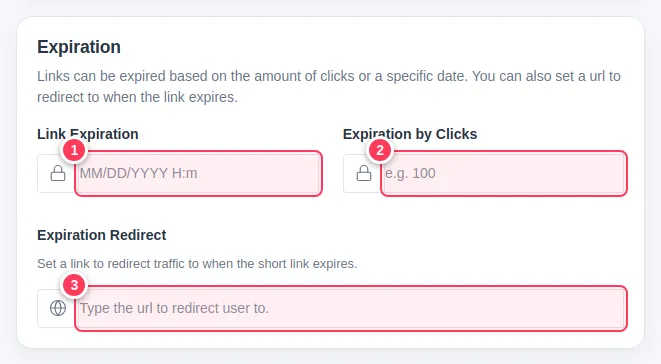
- 1Link Expiration: pick the date when the link should stop.
- 2Expiration by Clicks: type the number of clicks after which it stops, for example 100.
- 3Expiration Redirect (optional): a page to send people to after the link expires, such as "offer ended".
Save
Press Update Link at the top of the page. Expired links are listed under Expired Links in the side menu.
Tip: Set a redirect so customers who arrive late land on a page of yours, for example your shop, instead of a dead end.
Common problems
What happens when the click limit is reached?
The link stops working (or sends visitors to your Expiration Redirect page).
Can I extend an expired link?
Yes. Edit it, set a new date or a higher click number, and save.