
A password turns a link into a private door: visitors must type the password before they are sent to the page. Good for price lists, files for clients and private offers.
What you need
- Plan: Pro plan
- Time: 2 min
Step by step
Open the link edit page
From Links press the three dots, then Edit. You can also set a password when you create a link, in the options under the shorten box.
Set the password
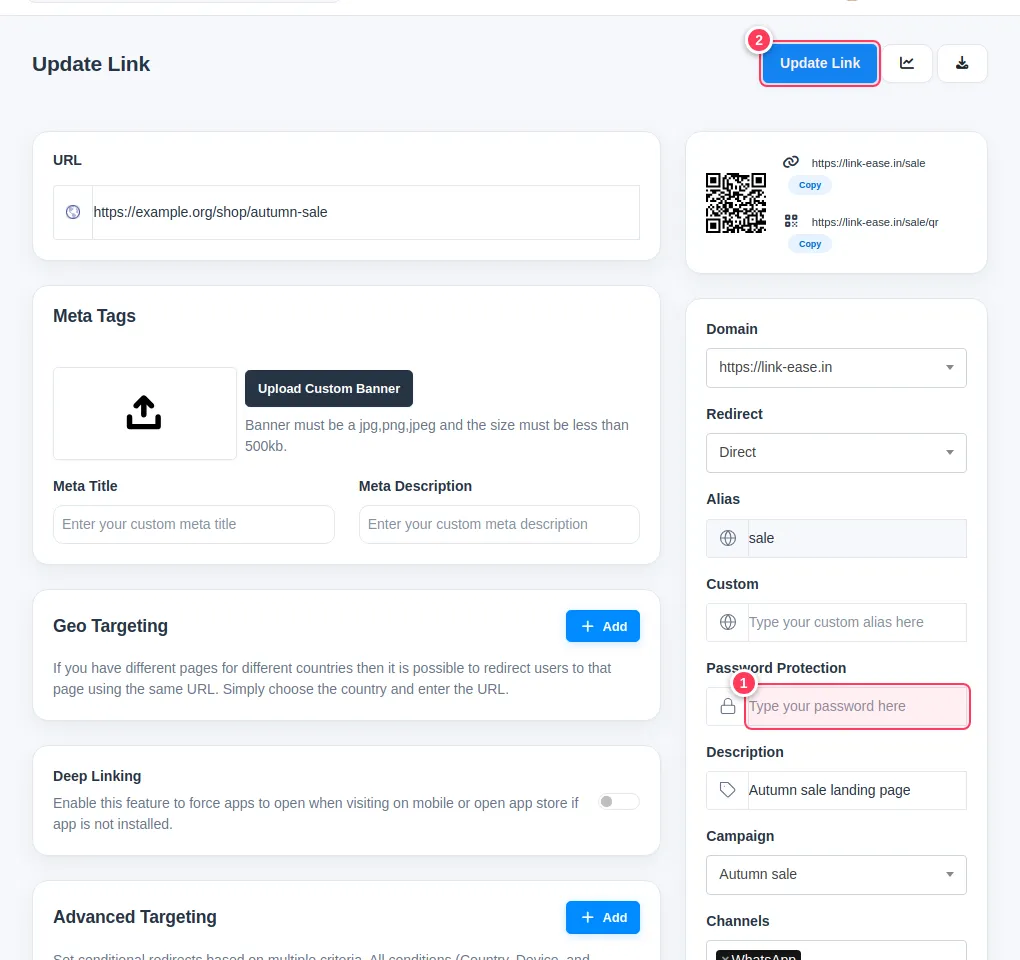
Scroll to the Password Protection field.
- 1Type the password you want visitors to use.
- 2Press Update Link.
Test it
Open the short link in a private window. You should see a page asking for the password. After the right password the visitor continues to your page.
Tip: Share the password through a different channel than the link, for example the link on WhatsApp and the password by phone.
Important: Clear the field and save to remove the password.
Common problems
Visitors say the password is wrong.
Passwords are case-sensitive. Check for a leading or trailing space.
Does it protect the page itself?
No. It protects the short link only. Anyone who knows the real address can still open it, so use it with pages that are not otherwise public.