
For coding and desktop tools you paste a small piece of configuration. Pick your tool below and copy the snippet exactly.
What you need
- Plan: Any plan
- Time: 5 minutes
- Node.js installed (only for Claude Desktop, it runs
npx).
Important. YOUR_API_KEY is a placeholder. On your AI page the real link is hidden behind dots; press the eye icon to see it, or the Copy button to copy it. Never paste it in public places.
Replace YOUR_API_KEY with the key from your own account. The AI Assistant page shows these snippets with your key already filled in when you press the Copy button, which is the easiest way.
Claude Desktop
Open Claude Desktop, then Settings, Developer and Edit Config. Paste this in
claude_desktop_config.json, save and restart the app.{ "mcpServers": { "linkease": { "command": "npx", "args": [ "-y", "mcp-remote", "https://mcp.link-ease.in/mcp/YOUR_API_KEY" ] } } }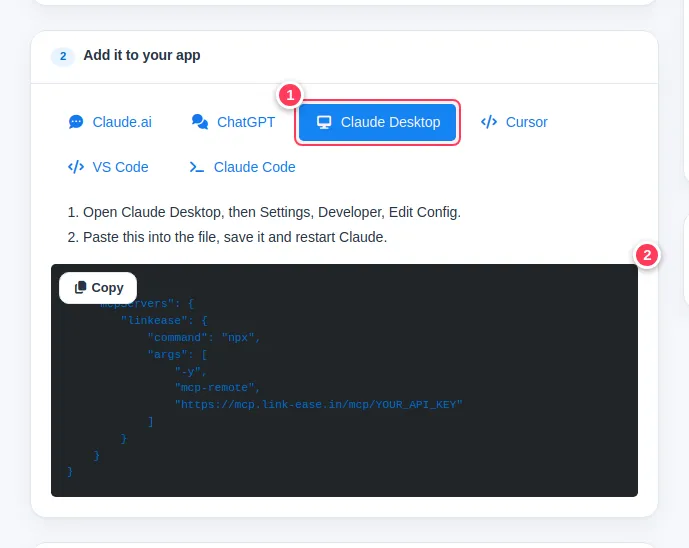
Cursor
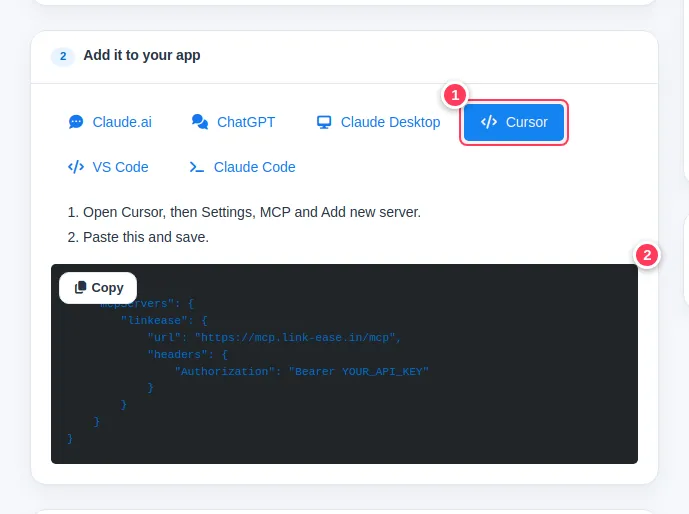
Open Cursor, then Settings, MCP and Add new server. Paste this and save.
{
    "mcpServers": {
        "linkease": {
            "url": "https://mcp.link-ease.in/mcp",
            "headers": {
                "Authorization": "Bearer YOUR_API_KEY"
            }
        }
    }
}
VS Code
In your project create the file
.vscode/mcp.json, paste this and save. VS Code asks you to start the server.{ "servers": { "linkease": { "type": "http", "url": "https://mcp.link-ease.in/mcp", "headers": { "Authorization": "Bearer YOUR_API_KEY" } } } }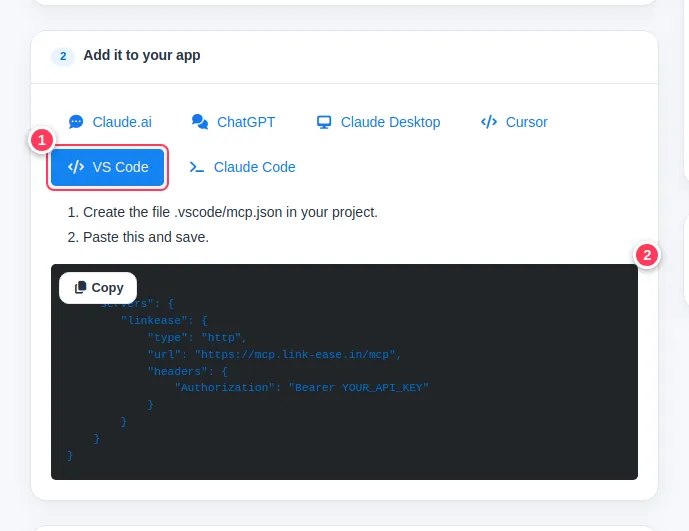
Claude Code
Run this one line in your terminal.
claude mcp add --transport http linkease https://mcp.link-ease.in/mcp --header "Authorization: Bearer YOUR_API_KEY"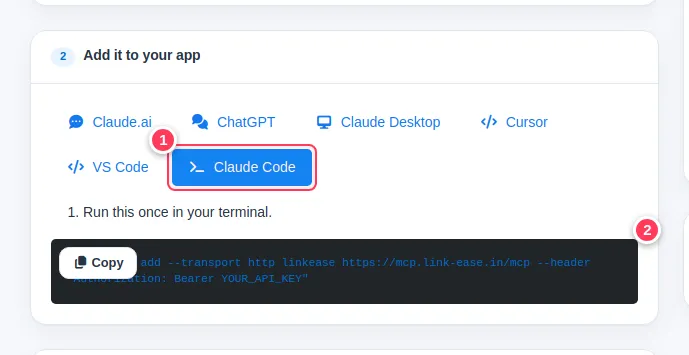
Check it works
Ask the tool: List my links. If it answers with your links, you are connected.
Common problems
Claude Desktop says npx was not found.
Install Node.js, then restart the app.
The tool says unauthorized.
The key is wrong or was replaced. Copy the snippet again from the AI Assistant page.