
In about ten minutes your links will open on your own address, for example go.yourshop.com. You add the domain in LinkEase, then create ONE CNAME record at the company where you bought the domain.
What you need
- Plan: Pro, Team, or the Free 30-day domain pass
- Time: 10 minutes, then a short wait for DNS
- A domain you own and access to its DNS settings at your provider.
Important. We never need your password for the domain company. Only the DNS record below is required.
Choose a subdomain
Pick a name you do not use yet, for example go.yourshop.com. Short names such as go, link, s or offers work well.
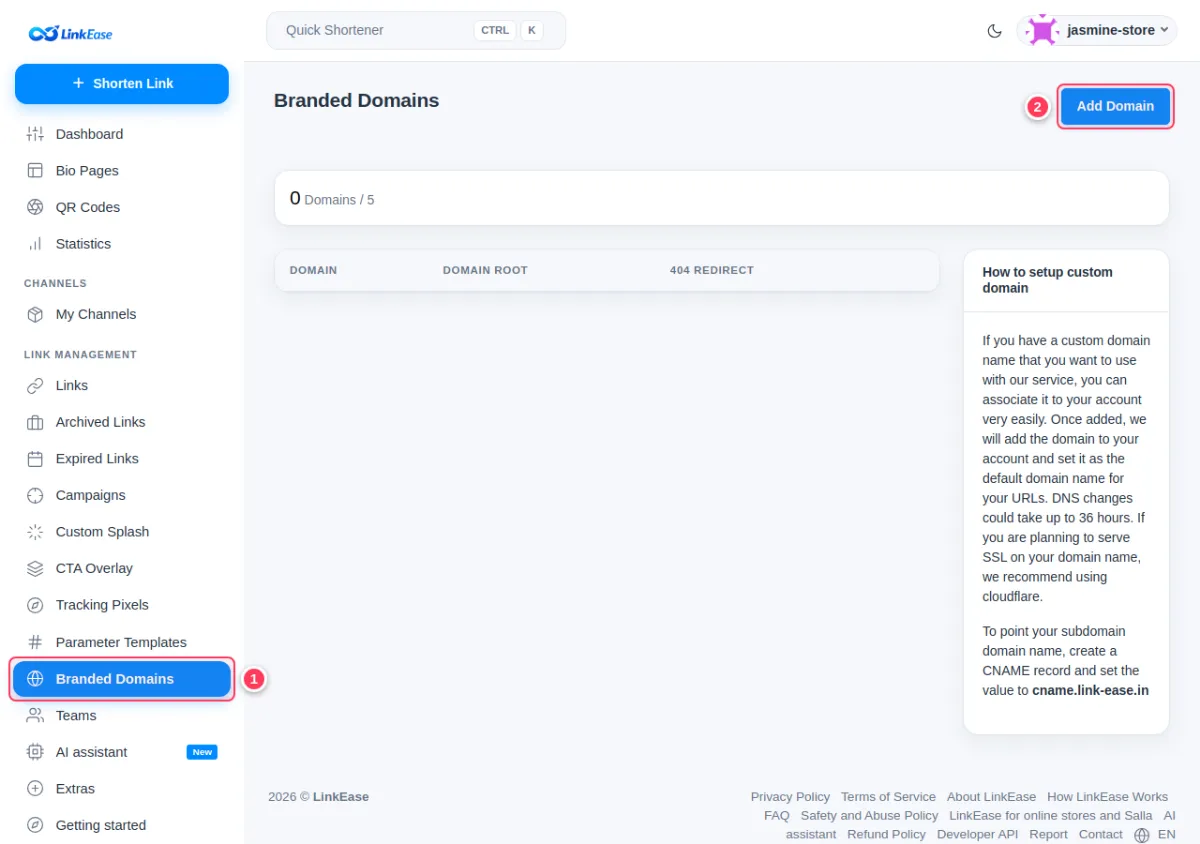
Open Branded Domains and press Add Domain
Click Branded Domains in the menu (1), then Add Domain (2).
Type your domain and save
Type the full name in the Domain field (1), for example
https://go.yourshop.com, then press Add Domain (2). You can leave Domain Root and Domain 404 empty for now; this article explains them.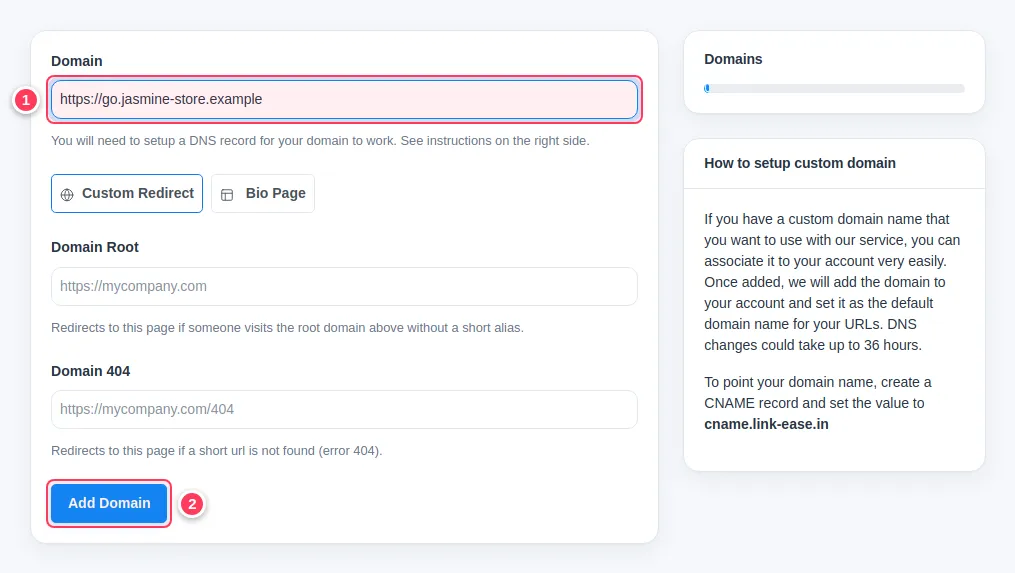
Read the one record you need
The domain now appears in your list with the label Waiting for your DNS record. The box under it (1) is the record to create: Type: CNAME, Name is your domain, and Target is
cname.link-ease.in. Press the copy icon next to the target to copy it.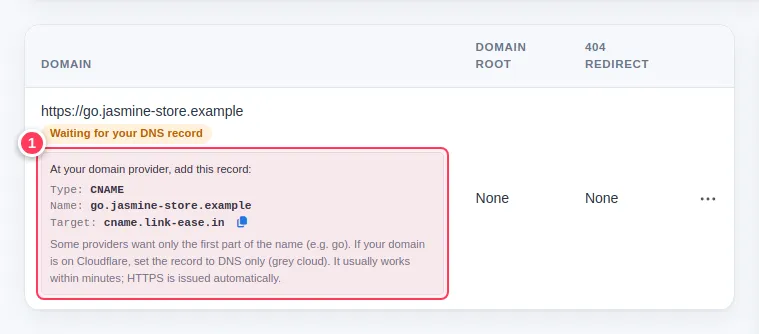
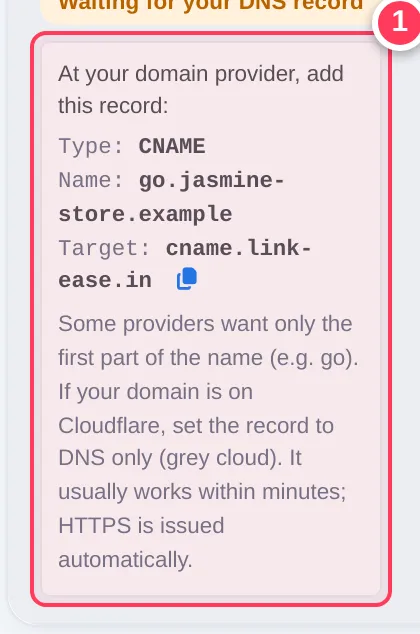
The box adds two hints from the app: some providers want only the first part of the name (for example go), and if your domain is on Cloudflare, set the record to DNS only (grey cloud). The sections below show exactly how.
Create the record at your domain provider
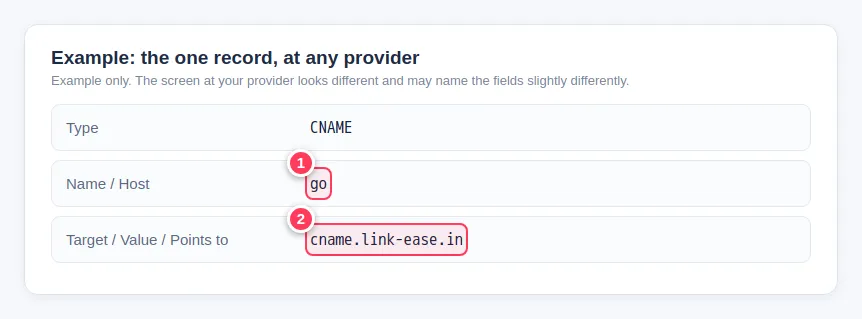
Open the DNS settings of the company where you bought the domain and add this record. Choose your provider below. The pictures are examples we drew, not screenshots of those companies, because their screens change often. Look for a menu called DNS, DNS records or Manage DNS.
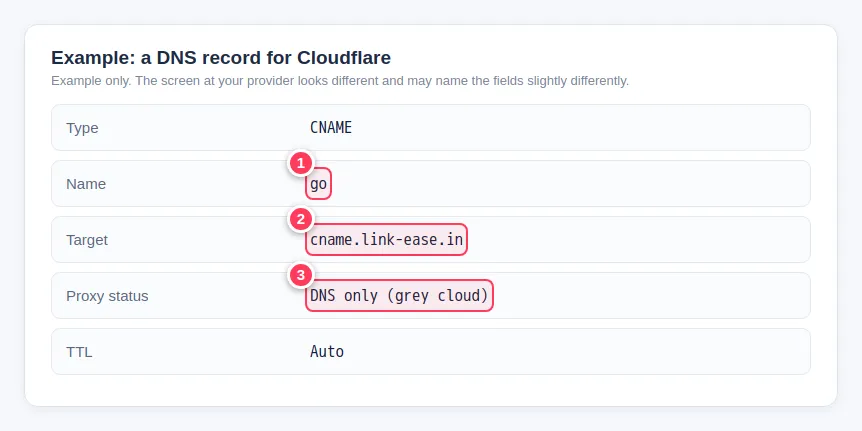
Cloudflare
- Sign in to Cloudflare and click your domain.
- Open DNS, then Records, then Add record.
- Type: CNAME (1 is the name, 2 the target).
- Name: go. Target: cname.link-ease.in.
- Proxy status: switch it to DNS only (grey cloud) (3). The app asks for exactly this. An orange cloud (Proxied) can stop the connection from completing.
- Click Save.
GoDaddy
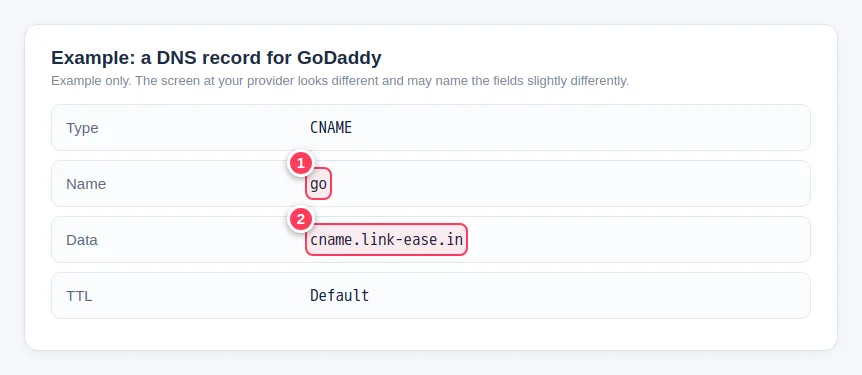
- Sign in to GoDaddy, open My Products, and next to your domain choose DNS (or Manage DNS).
- Click Add New Record and set Type to CNAME.
- Name: go (1). Data (the value): cname.link-ease.in (2).
- Keep the default TTL and click Save.
Namecheap
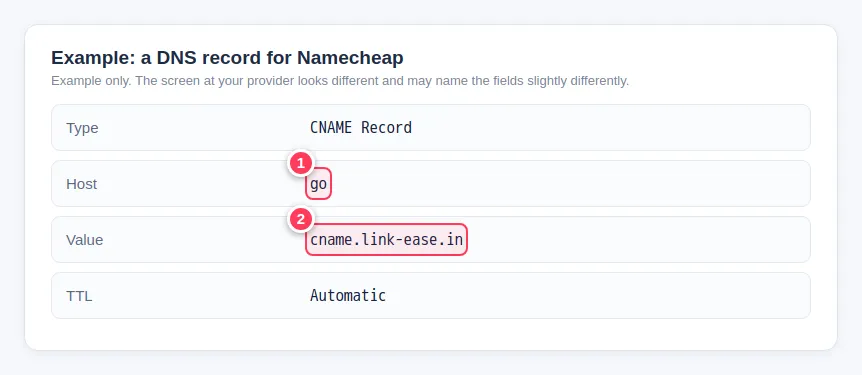
- Sign in to Namecheap, open Domain List and click Manage next to your domain.
- Open the Advanced DNS tab and click Add New Record.
- Type: CNAME Record. Host: go (1). Value: cname.link-ease.in (2).
- Keep TTL on Automatic and click the check mark to save.
Hostinger
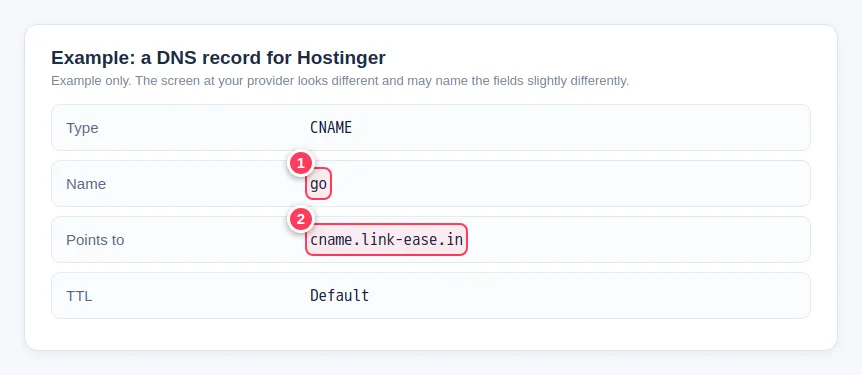
- Sign in to Hostinger, open Domains, choose your domain and open its DNS / Nameservers page.
- In the DNS records form choose Type CNAME.
- Name: go (1). Target (Points to): cname.link-ease.in (2).
- Keep the default TTL and click Add Record.
Any other provider
- Open the DNS settings (the DNS zone or DNS records) of your domain.
- Add a new record of type CNAME.
- Name or Host: go (1). If your provider already adds your domain after the name, type only go. If it asks for the full name, type go.yourshop.com.
- Value, Target or Points to: cname.link-ease.in (2).
- Save. A trailing dot after the target is accepted by providers that ask for it.
Wait a little, then check
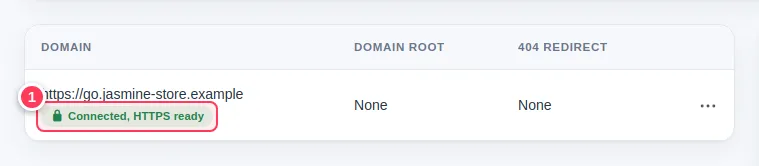
Go back to Branded Domains and refresh the page. It usually works within minutes, although DNS changes can take up to 36 hours at some providers. When the label turns green and says Connected, HTTPS ready (1), you are done. Details are in Check your domain status.
Common problems
It still says Waiting for your DNS record.
Check that the name is only go (not go.yourshop.com.yourshop.com), that the target is exactly cname.link-ease.in, and that there is no other record with the same name. On Cloudflare make sure the cloud is grey. Then wait a few more minutes.
It says Being prepared.
We are preparing the domain and retry automatically. If it lasts more than an hour, contact us from the Contact page.
I see a red note about a main domain.
A main domain such as yourshop.com usually cannot be a CNAME. Use a subdomain such as go.yourshop.com.
It says the domain has been already used.
Another account added it first. If you own the domain, add the CNAME record and contact us. An unverified claim by someone else is released after 48 hours.
I cannot find Add Domain, or the page sends me to the plans.
Your plan does not include a domain. Read which plan includes it.