
Once the domain is connected you decide what appears on it: new short links, bio pages, and what a visitor sees when they open the bare domain.
What you need
- Plan: Pro, Team, or the Free domain pass
- Time: 5 minutes
- A domain that shows Connected, HTTPS ready.
Put a short link on your domain
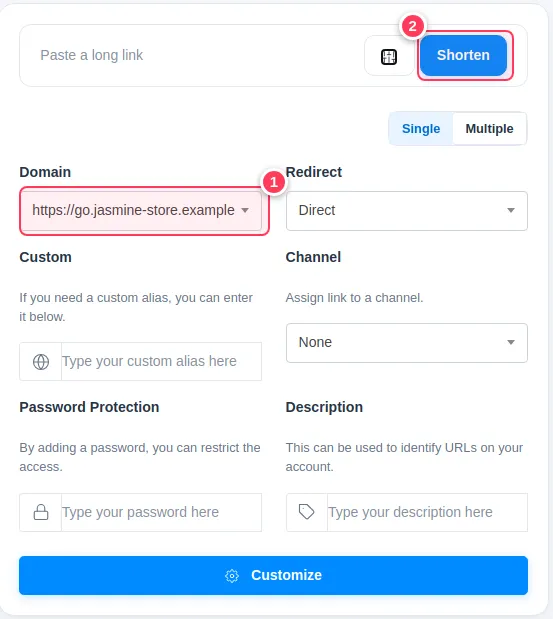
On the dashboard click the options icon next to Shorten to open Advanced Options. In the Domain list (1) choose your domain, paste the long link, and press Shorten (2). The short link now starts with your domain.
Tip. To use your domain by default, open Settings and choose it under Preferences, Default Domain.
Give a bio page your domain
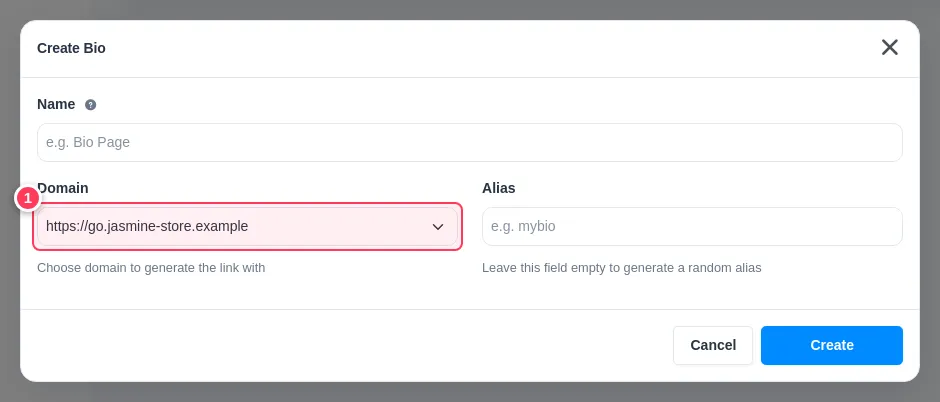
Open Bio Pages, press Create Bio, give it a name, and choose your domain in the Domain list (1). Add an alias if you want a custom ending, for example go.yourshop.com/menu.
Decide what the bare domain shows
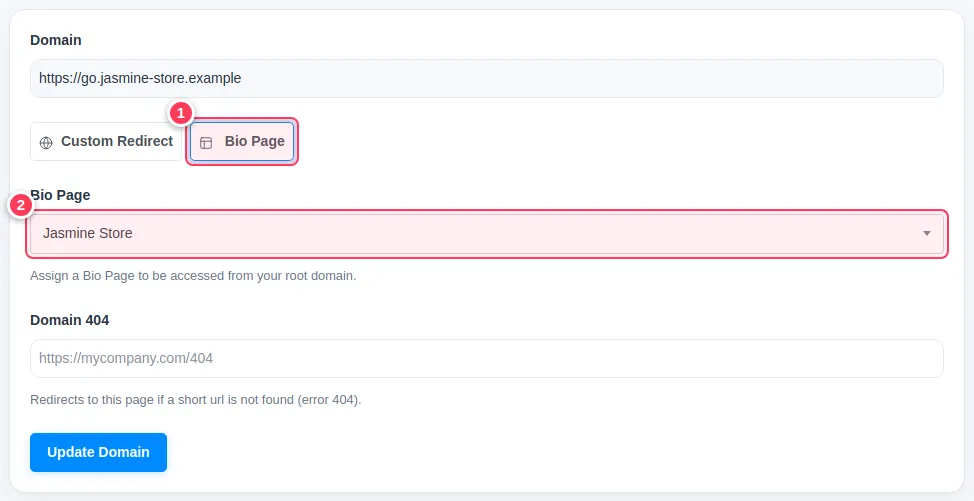
Open Branded Domains, use the ... menu on your domain and choose Edit Domain. Pick Bio Page (1) and choose which page to show (2), or stay on Custom Redirect and type a Domain Root address that visitors are sent to. Domain 404 is where visitors go when a short link is not found. Press Update Domain.
Important. If you change the domain of a link that is already shared, the old address stops matching. Set the domain when you create the link, and keep the old one for links that are already printed or posted.
Common problems
My domain is not in the list.
Only domains of your own account are listed. Check that you added it under Branded Domains.
The link opens a warning page.
Check the domain status first: it must be Connected, HTTPS ready.